
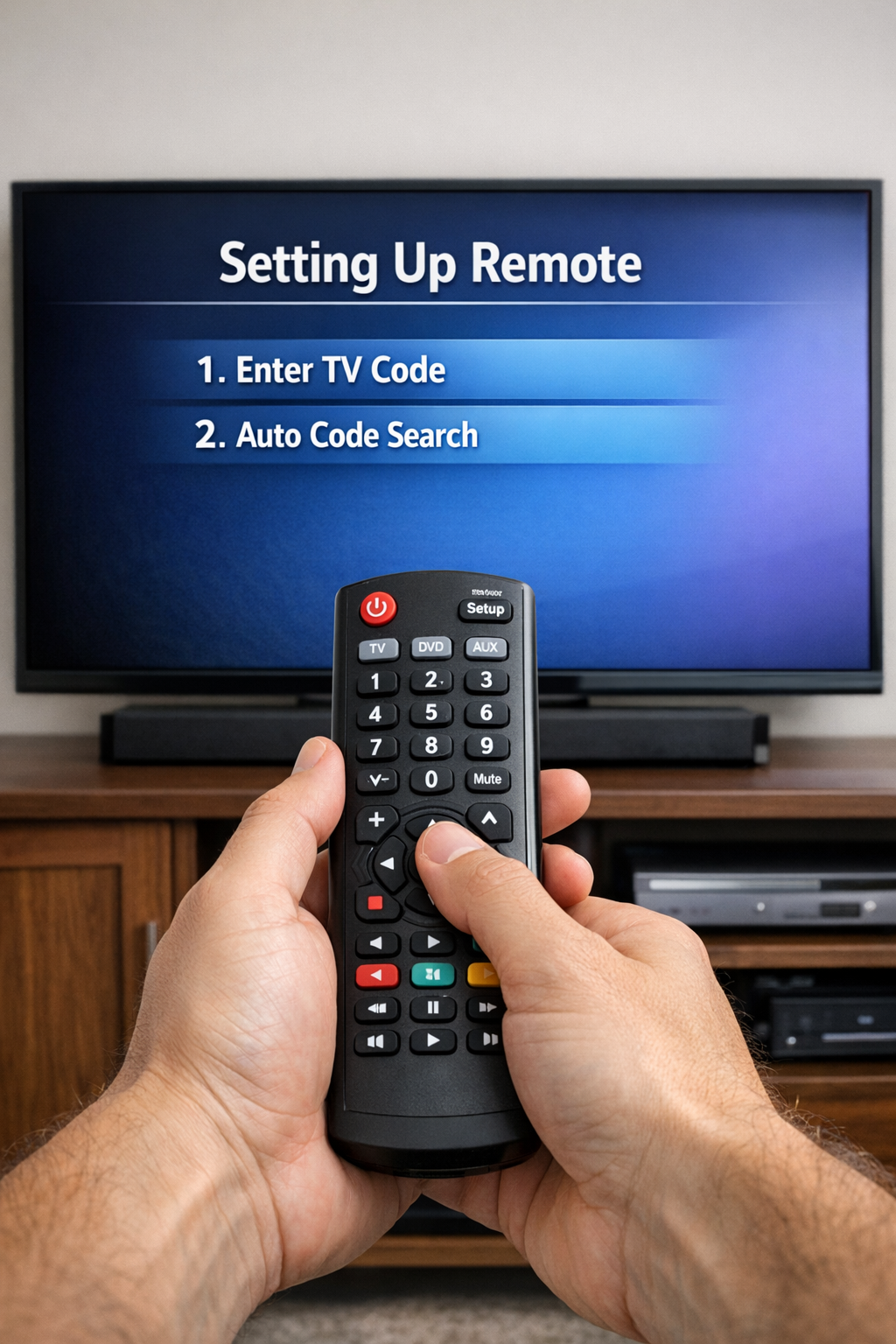
Losing your TV remote or juggling multiple remotes can be frustrating. That’s where a universal TV remote comes in. It allows you to control your TV—and often other devices like DVD players, soundbars, or cable boxes—with just one remote.
The good news? Setting up a universal remote is usually quick and easy. Let’s walk through it step by step. What Is a Universal TV Remote? A universal remote is designed to work with many brands and models of TVs and home entertainment devices. Popular brands include Samsung, LG, Sony, TCL, and more. Most universal remotes work using device codes or automatic code search. What You’ll Need Before You Start Before setting up your universal remote, make sure you have:
- A universal remote with working batteries
- The TV you want to control (turned on)
- The instruction manual (if available)
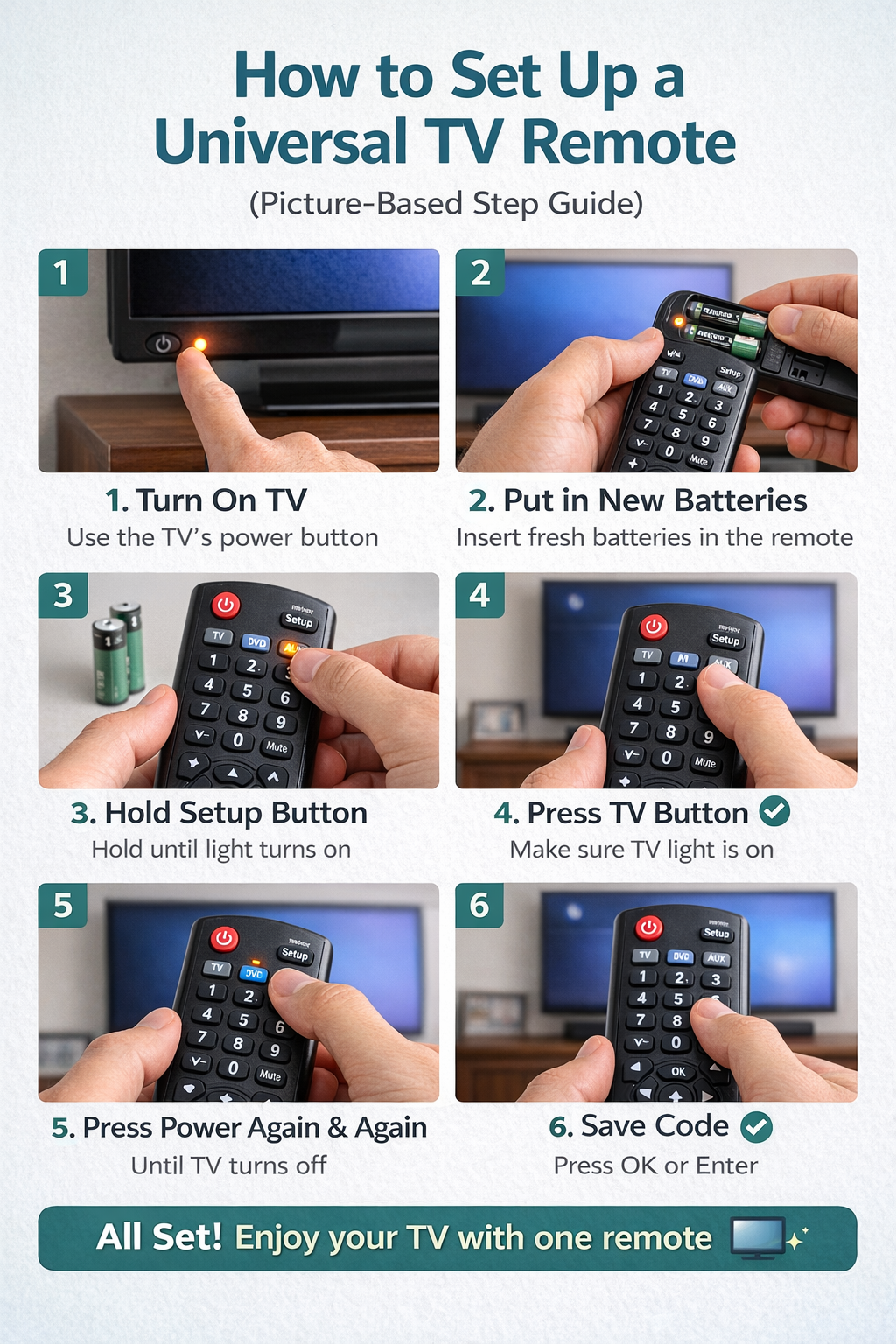
If you don’t have the manual, don’t worry—most remotes follow similar steps. Method 1: Set Up Using a TV Code (Manual Method) This is the most common and reliable method. Step 1: Turn On Your TV Use the TV’s power button (not the remote) to turn it on. Step 2: Put the Remote in Setup Mode
- Press and hold the Setup button until the indicator light turns on (or blinks).
- Some remotes may not have a Setup button—in that case, press and hold the TV button instead.
Step 3: Enter the TV Code
- Find the code for your TV brand (usually in the remote’s manual or on the manufacturer’s website).
- Use the number buttons to enter the code.
- The indicator light should turn off or blink to confirm.
Step 4: Test the Remote Try using the Power, Volume, or Channel buttons.
- If it works, you’re all set 🎉
- If not, repeat the steps using a different code for your TV brand.
Method 2: Set Up Using Auto Code Search If you don’t have the TV code, this method is perfect. Step 1: Turn On the TV Again, use the TV’s power button. Step 2: Activate Auto Search Mode
- Press and hold the Setup button until the light turns on.
- Press the TV button.
Step 3: Start Scanning for Codes
- Press the Power button repeatedly (or hold it, depending on the remote).
- The remote will send different codes to the TV.
Step 4: Lock the Code When the TV turns off:
- Press the Enter, OK, or Setup button to save the code.
Step 5: Test the Buttons Check volume, channels, and power to make sure everything works properly. Common Problems and Easy Fixes The remote doesn’t work at all
- Check the batteries.
- Make sure you’re pointing the remote directly at the TV.
Some buttons work, others don’t
- Try a different TV code.
- Repeat the auto-search process.
The TV brand isn’t listed
- Visit the remote manufacturer’s website for updated codes.
- Some newer smart TVs need updated universal remotes.
Tips for Best Results
- Use fresh batteries for smoother setup.
- Set up one device at a time.
- Keep the instruction manual or save a digital copy for future use.
Final Thoughts Setting up a universal TV remote might sound technical, but it’s actually very simple once you know the steps. Whether you use a manual code or auto-search, you’ll be back to enjoying your favorite shows in just a few minutes—without the remote clutter. One remote. Less stress. More couch time 📺✨





💬 Discussion (0)
Be the first to share your thoughts!
Leave a Comment